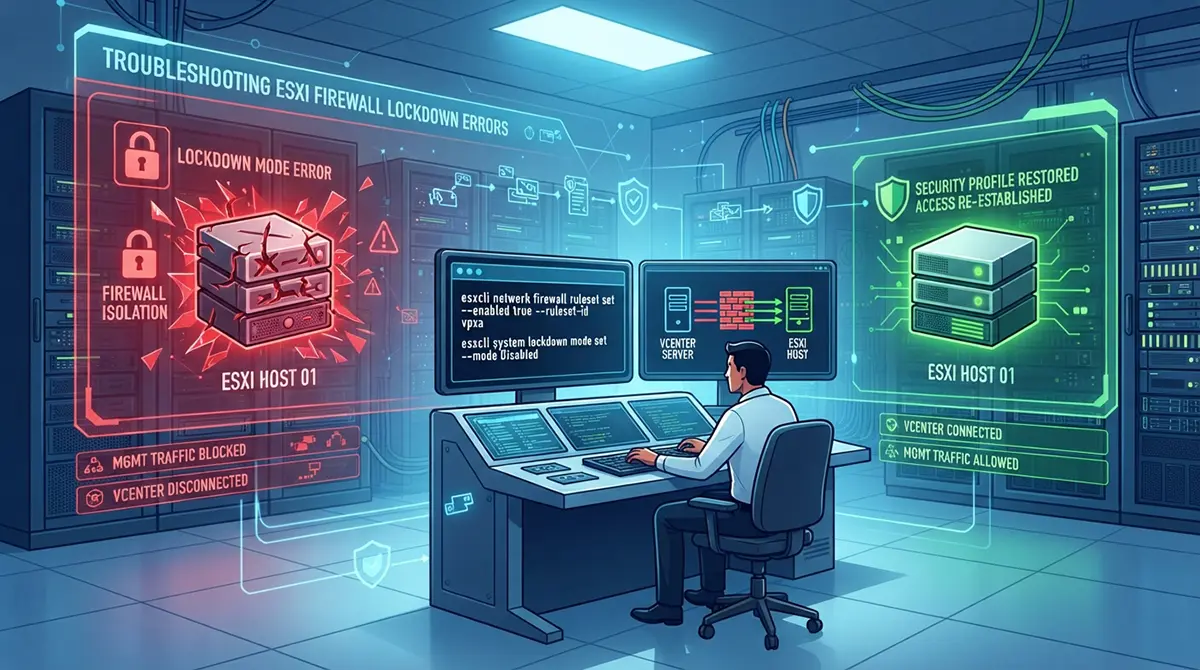



In the architecture of modern enterprise virtualization, VMware ESXi stands as a pillar of reliability, performance, and security. Administrators deploy these hypervisors to host critical workloads, trusting the built-in security features to safeguard infrastructure against unauthorized access. Among these defensive measures, the ESXi security profile, the integrated firewall, and Lockdown Mode form a formidable protective barrier. Together, they regulate network traffic down to individual ports and restrict administrative privileges to authorized management entities like vCenter Server.
However, security often comes with a steep operational cost. When misconfigured, these very same protective layers can lock administrators out of their own systems. A sudden firewall lockdown error can sever communication between vCenter and the host, block essential API calls, and render the Direct Console User Interface unresponsive to remote commands. Troubleshooting these issues requires a methodical understanding of how the ESXi firewall evaluates traffic, how Lockdown Mode alters access control lists, and how to safely restore connectivity without compromising the security posture of the data center.
This guide provides a comprehensive framework for diagnosing, resolving, and preventing ESXi security profile and firewall lockdown errors. Whether you are dealing with an immediate lockout situation or designing a resilient security policy for a large-scale deployment, the following sections will walk you through every phase of remediation and hardening.
Understanding the Architecture: The ESXi Firewall and Lockdown Mode
To effectively fix lockdown errors, you must first understand how the ESXi firewall and Lockdown Mode interact. Unlike traditional perimeter firewalls that protect an entire network segment, the ESXi firewall is a built-in, stateful packet inspection firewall running directly on the hypervisor kernel. Its primary purpose is to control incoming and outgoing traffic for services running on the ESXi host itself, such as the vSphere Client, SSH, NTP, and management agents.
Every service on an ESXi host is tied to a specific firewall ruleset. These rulesets define which ports are opened or closed and, crucially, which remote IP addresses are permitted to communicate through those ports. By default, many services are disabled or restricted to specific subnets. When an administrator modifies the security profile, they adjust these rulesets to allow administrative tools to reach the host.
Lockdown Mode takes this security paradigm a step further. When enabled, Lockdown Mode disables direct administrative access to the ESXi host through the vSphere Client and the local ESXi Shell or SSH service, unless specific exceptions are met. The host relies exclusively on vCenter Server to issue commands via authenticated API calls.
When a lockdown error occurs, it typically manifests in one of two ways:
-
The firewall configuration blocks vCenter Server from communicating with the host, causing the host to disconnect.
-
Lockdown Mode is enabled, but the connection between vCenter and the host is severed due to certificate mismatches, network segmentation, or firewall rules, leaving the administrator stranded with no local root access.
Recognizing the Symptoms and Root Causes of Lockdown Errors
Identifying the exact nature of a lockdown error is the first step toward a successful resolution. In a typical production environment, these errors announce themselves through sudden alerts in the vSphere Client, failed automation scripts, or complete loss of host management capabilities.
Common symptoms include the ESXi host appearing as disconnected or not responding in the vCenter inventory. When attempting to log in directly to the host client using root credentials, the system may present an authentication failure or a specific warning stating that the user does not have permission due to Lockdown Mode restrictions. If you attempt to access the host via SSH, the connection may time out or be summarily rejected because the SSH service ruleset in the firewall blocks external IP addresses.
The root causes of these errors usually fall into several distinct categories:
-
Overly Restrictive IP Rulesets: An administrator modifies the firewall security profile to restrict allowed IP addresses for the vpxa service or the vSphere Web Client, accidentally omitting the IP address of the active vCenter Server.
-
Host Profile Drift: Organizations using vSphere Host Profiles to enforce compliance may apply a profile that overwrites local firewall exceptions, instantly locking down ports required for management communication.
-
Certificate Expiration or Regeneration: When a vCenter certificate changes, the trust relationship between vCenter and the ESXi host can break. If the firewall drops unauthenticated or untrusted packets, the host may effectively lock itself away from its management plane.
-
Network Segmentation Changes: Changes to physical switches, VLAN assignments, or routing tables can cause management traffic to originate from an unexpected source IP address that is not explicitly allowed in the ESXi firewall exception list.
Immediate Triage: Restoring Access When Locked Out
When an ESXi host enters a locked-down or isolated state, standard remote troubleshooting tools become unavailable. You cannot use the vSphere Client if the host is disconnected, and you cannot use API scripts if the firewall is dropping your connections. Recovering from this state requires moving from remote management to out-of-band access or physical intervention.
Utilizing Out-of-Band Management Tools
Modern enterprise servers feature out-of-band management controllers such as Dell iDRAC, HPE iLO, Cisco IMC, or standard IPMI interfaces. These controllers operate independently of the ESXi operating system, providing a virtual keyboard, video, and mouse interface alongside a dedicated network port.
If you are locked out of an ESXi host, connect to the server’s out-of-band management interface via a web browser or secure shell. Launch the Virtual Console. This grants you direct visual access to the physical monitor of the ESXi host, bypassing both the firewall and Lockdown Mode network restrictions because the console feed is processed directly by the hardware motherboard rather than the hypervisor network stack.
Interacting with the Direct Console User Interface
Once you have opened the virtual console, you will be greeted by the Direct Console User Interface. The DCUI is the text-based local management console of ESXi. From here, you can perform emergency recovery operations that are otherwise restricted by network-level firewalls.
To regain control, log into the DCUI using the root account credentials. If Lockdown Mode is preventing administrative access, you can use the DCUI to disable it temporarily:
-
Navigate to Configure Lockdown Mode using the arrow keys and press Enter.
-
Select Disabled and confirm your choice.
-
Press Esc to return to the main status screen.
Disabling Lockdown Mode from the DCUI immediately restores local root access through the ESXi Shell and the host client, allowing you to investigate and fix underlying firewall configuration errors.
Diagnosing Firewall Ruleset Misconfigurations
With local access restored via the DCUI or out-of-band console, you can turn your attention to the firewall configuration itself. The ESXi firewall is managed through XML-based configuration files located in the
/etc/vmware/firewall directory, but these should be modified using supported tools rather than manual text editing.Inspecting Active Firewall Rulesets via the ESXi Shell
Enable the ESXi Shell from the DCUI troubleshooting options if it is not already running. Log in using an SSH client or directly at the console. To view the current status of all firewall rules and see which ones are enabled or disabled, execute the following command:
esxcli network firewall ruleset list
This command outputs a comprehensive list of all firewall rulesets, such as
vpxa, sshServer, CIMHttpServer, and vSphereClient. Pay close attention to the Enabled column. If a critical management service shows as false, that service is currently blocked by the firewall.To inspect the specific details of a particular ruleset, including allowed ports, protocols, and permitted IP addresses, use the following syntax:
esxcli network firewall ruleset allowedip list --ruleset-id=vpxa
This inspection will reveal whether the IP address of your vCenter Server is explicitly included in the allowed list. If the allowed IP list is populated with a restrictive subnet or a single incorrect IP address, vCenter will be unable to communicate with the host, triggering the lockdown error.
Step-by-Step Resolution Strategies for Firewall Lockdown Errors
Once you have identified the misconfigured ruleset or the source of the lockdown conflict, you can implement a targeted resolution strategy. Depending on the severity of the lockout and your current access level, you can choose from several approaches.
Method One: Resetting Firewall Rules to Factory Defaults
If a series of experimental changes or a faulty script has corrupted the firewall configuration beyond easy manual repair, you can reset all firewall rulesets back to their factory default settings. This action clears custom allowed IP lists and re-enables standard default rules.
Execute the following command in the ESXi Shell:
esxcli network firewall set --default-action false
While resetting defaults is effective, use caution in high-security environments because it may open ports that your organization prefers to keep closed. Always review the active rules immediately after a reset to ensure compliance with your security policies.
Method Two: Explicitly Allowing Management IP Addresses
Rather than resetting the entire firewall, the preferred approach for targeted lockdown errors is to explicitly add the missing management IP addresses or subnets back into the required ruleset.
For instance, if your vCenter Server with IP address 192.168.100.50 is blocked from communicating with the host daemon (
vpxa), run the following commands:esxcli network firewall ruleset set --allowed-all false --ruleset-id=vpxa
esxcli network firewall ruleset allowedip add --ipaddress=192.168.100.50 --ruleset-id=vpxa
esxcli network firewall ruleset refresh
These commands configure the
vpxa ruleset to reject unrestricted access (allowed-all false), add the specific vCenter IP address to the allowed list, and refresh the firewall engine to apply the changes immediately.Method Three: Re-establishing Trust and Reloading Agents
Sometimes the firewall is correctly configured, but the management agents on the ESXi host have crashed or lost synchronization with vCenter Server due to a temporary network drop during a lockdown event.
You can restart the management agents directly from the ESXi Shell to force a reconnection:
/etc/init.d/hostd restart
/etc/init.d/vpxa restart
Restarting
hostd (the host daemon) and vpxa (the vCenter agent) re-initializes the communication stack, allowing the host to re-authenticate with vCenter Server and clear the disconnection state.Advanced Troubleshooting Using PowerCLI and ESXCLI
For administrators managing large clusters containing dozens or hundreds of ESXi hosts, fixing lockdown errors individually via the DCUI is inefficient. PowerCLI provides an automation framework to inspect, diagnose, and remediate firewall and lockdown errors at scale.
Connecting and Querying Host Lockdown Status
Launch PowerCLI and connect to your vCenter Server:
Connect-VIServer -Server vcenter.local.lan
You can quickly retrieve the lockdown status of all hosts in your inventory using a simple query:
Get-VMHost | Select-Object Name, LockdownMode, PowerState
If a host is stuck in Lockdown Mode and disconnected from vCenter, standard PowerCLI cmdlets targeting that specific host may fail. In such cases, you can temporarily manipulate the host state using credentials passed directly to the host connection object, or handle the remediation via automated SSH scripts using tools like PuTTY or native SSH modules.
Automating Firewall Configuration via PowerCLI
If multiple hosts suffer from a firewall rule drift caused by a flawed Host Profile, you can write a short PowerCLI script to enforce correct firewall settings across the cluster. For example, to ensure that the SSH server ruleset is consistently configured across all hosts, you can execute commands through the ESXCLI extension within PowerCLI:
$vmhost = Get-VMHost -Name "esxi01.local.lan"
$esxcli = Get-EsxCli -VMHost $vmhost -V2
$esxcli.network.firewall.ruleset.set.invoke(@{rulesetid="sshServer"; enabled=$true})
By leveraging ESXCLI through PowerCLI, administrators can push consistent security profiles across the entire enterprise, eliminating human error and ensuring that lockdown policies do not inadvertently block legitimate administrative traffic.
Managing Host Profiles and Compliance Drift
Host Profiles are one of the most powerful features in vSphere, allowing administrators to capture the configuration of a reference host and apply it across an entire cluster. However, Host Profiles are also a frequent culprit behind sudden security profile and firewall lockdown errors.
When a Host Profile is attached to a cluster, vCenter continuously monitors compliance. If an administrator makes a manual change to an ESXi firewall rule directly on a host to resolve an immediate issue, that change causes compliance drift. When the Host Profile re-applies its baseline configuration, it overwrites the manual fix, instantly re-introducing the lockdown error.
Resolving Host Profile Conflicts
To permanently fix lockdown errors driven by Host Profiles, follow these remediation steps:
-
Edit the Reference Host Profile: Navigate to Policies and Profiles in the vSphere Client, select the offending Host Profile, and edit its settings.
-
Locate Firewall and Security Settings: Expand the security configuration section, specifically looking at firewall rulesets and Lockdown Mode configuration parameters.
-
Update Allowed IP Lists: Ensure that the reference profile includes all necessary management subnets and IP exceptions before applying it to production hosts.
-
Check Compliance Results: Run a compliance check on the affected host before remediation. Review the specific differences highlighted by vCenter to confirm that the firewall rules in the profile match your network requirements.
-
Remediate with Precision: Apply the updated profile selectively rather than blindly overwriting host configurations, verifying that management connectivity remains intact throughout the process.
Proactive Hardening and Best Practices to Prevent Future Lockouts
Resolving a lockdown error under pressure during an outage is stressful. Implementing proactive hardening measures and operational best practices ensures that your ESXi security profile and firewall settings remain secure without putting administrative access at risk.
Designing Robust Firewall Policies
When configuring the ESXi security profile, adhere to the principle of least privilege while maintaining operational redundancy:
-
Never rely on
allowed-all = truefor sensitive services like SSH, ESXi Shell, or the vSphere Web Client. Always restrict access to specific management subnets or jump boxes. -
Maintain an up-to-date documentation register of all administrative IP addresses, including backup management networks, monitoring servers, and automation controllers.
-
Test all firewall changes in a non-production staging environment before deploying them to live production clusters.
Establishing Emergency Access Protocols
Every data center team should have a documented emergency access protocol for handling host lockouts:
-
Ensure that out-of-band management controllers (iLO, iDRAC, IPMI) are assigned to a secure, dedicated management VLAN that remains accessible even if the in-band hypervisor network is locked down.
-
Maintain physical or secure virtual console access credentials in a secure password vault accessible to senior engineers during an incident.
-
Define a clear escalation path for administrators to follow if a script or profile update causes widespread cluster isolation.
Monitoring and Auditing Security Profiles
Continuous monitoring helps catch configuration drift before it turns into a lockdown error:
-
Configure vRealize Log Insight, Splunk, or your preferred syslog server to monitor ESXi firewall change events and Lockdown Mode alterations.
-
Set up vSphere alarms to trigger notifications whenever a host disconnects from vCenter or when a Host Profile compliance check fails.
-
Conduct periodic security audits of your ESXi firewall rulesets to remove stale IP addresses and verify that current administrative tools retain uninterrupted access.
Conclusion
Securing enterprise virtualization infrastructure requires a delicate balance between defense-in-depth and operational accessibility. ESXi security profiles, integrated firewalls, and Lockdown Mode are indispensable tools for protecting hypervisors against malicious actors, but their aggressive stance can occasionally backfire, resulting in frustrating lockdown errors and management lockouts.
By mastering the underlying architecture of the ESXi firewall, utilizing out-of-band management and the Direct Console User Interface for emergency triage, and applying precise remediation commands through ESXCLI and PowerCLI, administrators can swiftly recover from any lockout scenario. Furthermore, by managing Host Profiles carefully and establishing proactive monitoring and hardening best practices, you can ensure that your virtualization environment remains both impenetrable to threats and fully accessible to the teams charged with keeping it running.
If you frequently encounter such security errors or unauthorized intrusions on your servers, check out our “IT support services in UAE” page for a professional infrastructure audit.