



When you first step into the world of Linux, you enter an ecosystem governed by elegance, consistency, and a profound underlying philosophy. Unlike operating systems that hide their inner workings behind abstract icons and layered metaphors, Linux lays bare its architecture. At the absolute heart of this architecture lie two fundamental entities: files and directories. To the untrained eye, a file is a document or a program, and a directory is simply a folder that holds them. While this analogy provides a comfortable starting point, it barely scratches the surface of how Linux actually manages information.
Understanding the precise differences between a file and a directory in Linux is not merely an academic exercise. It is a critical skill that empowers you to troubleshoot system errors, configure servers, write efficient scripts, and harness the full power of the command line. Every single operation you perform on a Linux machine, from updating packages to writing source code, interacts with these two building blocks. By diving deep into their definitions, structural differences, and underlying mechanisms, you will unlock a level of mastery that transforms how you interact with technology.
The Core Philosophy: Why Everything in Linux is a File
To truly grasp the nature of directories and files, you must first understand the foundational mantra of the Unix and Linux design philosophy. That mantra states that everything in Linux is a file, or if it is not a file, it is a process. While directories might seem like a special category at first glance, they fit neatly into this paradigm.
In Linux, this philosophy means that system resources, hardware devices, network sockets, inter-process communication channels, and traditional documents are all represented and accessed through the standard file interface. When you want to read from a hard drive, print a document, or communicate with another computer over a network, the operating system treats those interactions through file descriptors.
Within this grand unifying framework, a directory is simply a specialized type of file. It does not store your text documents, images, or application code directly. Instead, it stores a specialized catalog that points to other files and directories. This realization shifts your perspective from seeing files and directories as entirely separate entities to seeing directories as structural managers that organize and orchestrate files, while both share the same underlying DNA within the operating system.
Deconstructing the Linux File: A Stream of Pure Bytes
At its core, a regular file in Linux is an unformatted sequence of bytes. The operating system does not care whether those bytes represent a high-resolution photograph, a plain text shopping list, a compiled binary executable, or a compressed archive. To the kernel, a file is simply a continuous or logically chained stream of data storage space.
Files have no inherent knowledge of their own structure. If you open a text file, it is the text editor application that interprets the bytes as characters. If you run a video player, it is the player that decodes the bytes into frames and audio waveforms. The file itself is passive. It holds the data, but it relies completely on external software to give that data meaning.
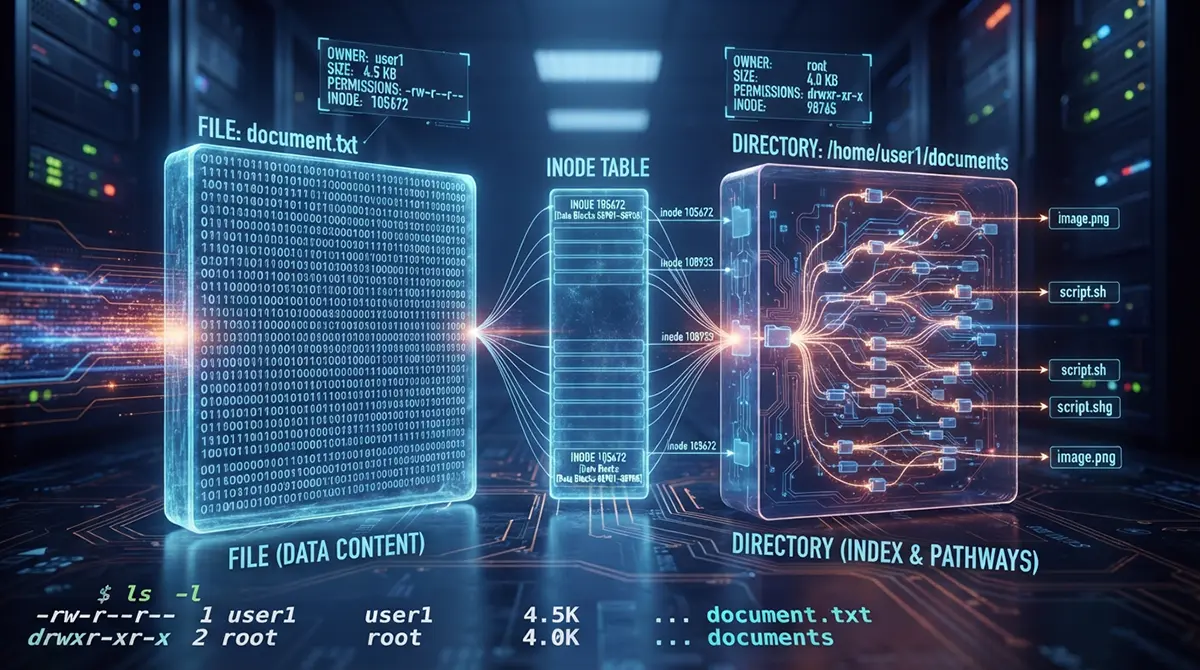
Furthermore, a file is bound to metadata that describes its properties. This metadata includes the owner of the file, the group permissions, the access timestamps, the file size, and pointers to the physical blocks on the storage medium where the actual byte stream resides. This metadata is stored in a data structure known as an inode, which acts as the identity card for every file in a Linux filesystem. When you interact with a file, you are manipulating a discrete container of data governed by its specific inode.
Unveiling the Directory: The Map, the Compass, and the Container
If a file is a stream of bytes containing data, what exactly is a directory? If you look inside a directory, you will not find the actual contents of the files residing within it. Instead, you will find a lookup table or a specialized database managed by the filesystem.
A directory is a file whose purpose is to map human-readable names to specific inode numbers. When you create a file named note.txt inside your documents directory, the operating system does not write the contents of note.txt inside the directory file itself. Instead, the directory file records an entry containing the string note.txt and pairs it with the unique inode number assigned to that file.
This mapping mechanism creates the hierarchical tree structure that defines Linux filesystems. The root directory sits at the very top of the tree, branching out into system directories like bin, etc, home, and var. Each of these subdirectories contains its own mapping tables, pointing to further files and nested directories. Because directories are themselves files, they also possess their own inodes, permissions, and metadata. However, the data payload of a directory file is a list of associations rather than raw application data.
Looking for Enterprise-Grade DevOps Services in Dubai?
Scaling your infrastructure, automating deployments, and ensuring 99.9% uptime shouldn’t be a bottleneck for your business. Whether you need robust CI/CD pipelines, containerization with Docker and Kubernetes, or secure cloud architecture, We can help you streamline your operations. Let’s optimize your IT environment Get in touch with us today to discuss your project.
The Inode Connection: How Linux Actually Tracks Your Data
To appreciate the distinction between files and directories, you must understand how inodes bridge the gap between human organization and physical storage. An inode stands for index node. It is a data structure in a Unix-style filesystem that describes a file-system object, such as a file or a directory.
Every file and every directory has one and only one inode. Crucially, an inode does not contain the name of the file or directory. It contains everything else about the object. This includes file size, device IDs, user ID and group ID of the ownership, access permissions, timestamps for creation, modification, and access, and pointers to the disk blocks where the data lives.
Because directories store only names and inode numbers, several fascinating behaviors emerge. For instance, a single file can be referenced by multiple names in different directories through hard links. All these names point to the exact same inode. If you modify the file through one name, the change is instantly reflected across all names because the underlying data block and inode are identical. Directories, however, cannot typically have hard links made to them by standard users, because doing so would risk creating infinite loops in the filesystem tree, which would catastrophically break traversal algorithms.
Permissions Decoded: Why Execute Means Something Entirely Different
One of the most striking practical differences between files and directories in Linux lies in how file permissions are interpreted. Every file and directory has read, write, and execute permissions assigned to the owner, the group, and others. However, the meaning of these permissions changes drastically depending on whether the target is a file or a directory.
-
Read Permission for a File: Allows you to open and read the contents of the file. You can view text, parse data, or play media.
-
Read Permission for a Directory: Allows you to list the contents of the directory. Without read permission, you cannot run the ls command to see what files and folders are inside.
-
Write Permission for a File: Allows you to modify, append to, or overwrite the data contained within the file.
-
Write Permission for a Directory: Allows you to create new files, delete existing files, and rename files within that directory. This is a critical distinction because deleting a file requires write permission on the parent directory, not necessarily on the file itself.
-
Execute Permission for a File: Allows the operating system to run the file as a program or script.
-
Execute Permission for a Directory: Allows you to traverse or enter the directory. Without execute permission, you cannot change into the directory using the cd command, nor can you access any files inside it even if you know their exact names.
These distinct permission rules highlight the structural nature of directories. They are not merely storage bins; they are access gates that govern how you traverse the filesystem tree.
Under the Hood: How Filesystems Store Files Versus Directories
When examining modern Linux filesystems such as ext4, XFS, or Btrfs, the physical layout on the storage drive reveals further differences in how files and directories are handled.
When you write data to a file, the filesystem allocates storage blocks on the disk and links those blocks to the file inode. As the file grows, the filesystem allocates additional blocks. For very small files, the data might even be stored directly inside the inode structure itself to optimize space and retrieval speed.
Directories, on the other hand, are stored as specialized data structures. In older filesystems, a directory was simply a flat list of fixed-size records containing inode numbers and filenames. Searching through a large directory required scanning this list sequentially. Modern filesystems employ advanced data structures like HTrees or B-trees for directories containing thousands or millions of entries. These tree structures allow the kernel to locate a specific file name within a massive directory almost instantaneously, without needing to read every single entry. Despite these complex underlying optimizations, the logical abstraction presented to the user remains the same: a directory maps names to inodes.
Navigating the Command Line: Essential Tools for Managing Both Worlds
Working in the Linux terminal requires distinct commands and mental models for interacting with files versus directories. While some commands handle both types of objects, others are strictly specialized.
When creating objects, you use touch to initialize a new, empty file or update the timestamps of an existing one. Conversely, you use mkdir to create a new directory. Attempting to use touch to create a folder will result in an empty file instead, reinforcing the structural difference from the start.
When removing objects, the tools diverge further. The rm command is used to delete files, while rmdir is used to remove empty directories. If you want to delete a directory and all the files inside it, you must use rm with recursive flags, because a directory cannot be deleted while it still contains filename mappings pointing to active inodes.
To inspect whether an object is a file or a directory, the file command is your best friend. By examining the magic numbers and byte signatures at the beginning of an object, file can instantly tell you if something is a plain text file, a directory, a symbolic link, a block device, or a compiled binary. Furthermore, running the standard listing command with the long format flag reveals the file type indicator as the very first character of the permission string, where a dash represents a regular file and the letter d represents a directory.
Special Cases: When Directories and Files Blur the Lines
The brilliance of the Linux architecture shines brightest when special objects challenge our traditional definitions. While standard files hold data and standard directories hold maps, Linux introduces several specialized file types that expand this paradigm in fascinating ways.
Symbolic links, or symlinks, are special files that contain the text path pointing to another file or directory. Unlike hard links, which point directly to an inode, a symbolic link is essentially a shortcut that redirects the operating system to a different location in the filesystem. A symbolic link can point to either a file or a directory, and deleting the target leaves a broken link behind.
Device files found inside the dev directory represent physical hardware components. A hard drive, a keyboard, or a sound card is represented as a file. When you write data to a printer device file, the operating system intercepts that byte stream and sends it to the physical printer hardware.
Special directory types also exist, such as mount points where entirely separate filesystems are attached to the main directory tree. When you plug in a USB drive and mount it to a folder, that folder temporarily acts as the gateway to a completely different set of inodes and data blocks on the external hardware.
Mastering the System: Why This Distinction Matters for Every User
Grasping the difference between a file and a directory in Linux goes far beyond passing a certification exam or memorizing terminal commands. It shapes your entire intuition as a computer user and system administrator.
When you understand that directories are simply mapping tables and files are streams of bytes, error messages like permission denied or resource busy lose their mystery. You realize that a permission error on a directory means your access gate is locked, while a permission error on a file means your data key is rejected. When writing automation scripts, knowing how paths resolve through directories prevents catastrophic bugs that could overwrite critical system files.
Linux offers a level of transparency and control that is unmatched by other operating systems. By respecting the foundational roles of files and directories, you unlock the ability to navigate, configure, and troubleshoot any Linux environment with confidence and precision. The command line stops feeling like a barrier and starts feeling like an extension of your own analytical mind, where every file and directory is a clear, understandable piece of a magnificent technological puzzle.