

For many computer users, the digital world is neatly divided into a familiar duopoly: Windows on one side and macOS on the other. Growing up with graphical user interfaces pre-installed on every store-bought laptop, most people never pause to wonder what lies beneath the sleek icons, polished taskbars, and user-friendly settings menus. Yet, behind the scenes, an entirely different operating system quietly powers the modern world. Linux is the invisible engine driving everything from the smartphone in your pocket and the smart TV in your living room to the massive cloud servers hosting the world’s most popular websites, financial institutions, and supercomputers.
Stepping into the world of Linux can feel intimidating at first glance. For decades, it carried an undeserved reputation as an arcane playground reserved exclusively for hoodie-wearing hackers, systems administrators, and computer science academics typing frantic strings of code into pitch-black terminal screens. However, that perception is deeply outdated. Today’s Linux distributions are remarkably polished, visually stunning, and remarkably stable. They offer an empowering alternative to proprietary systems that track user data, force unwanted updates, and lock users into rigid software ecosystems.
Learning Linux is not merely about picking up a new piece of software; it represents a fundamental shift in how you interact with technology. It teaches you how computers actually work, grants you absolute ownership over your hardware, and opens the door to high-demand career paths in software engineering, cybersecurity, cloud architecture, and system administration. Whether you are an absolute novice looking to break free from corporate tech monopolies or an aspiring professional eager to master the backbone of modern cloud infrastructure, this comprehensive guide will walk you through everything you need to know to transition smoothly and confidently into the world of Linux.
What Is an Operating System, Anyway?
To understand why Linux is special, we must first examine what an operating system (OS) actually does. At its core, a computer is a collection of lifeless silicon, copper, and electrical circuits. Without software, it is nothing more than an expensive paperweight. The operating system acts as the master coordinator between the physical hardware—such as your processor, memory modules, graphics card, and storage drives—and the application software you use every day, like web browsers, media players, and text editors.
In mainstream operating systems like Windows and macOS, the operating system is packaged as a monolithic commercial product. You buy the computer, and the OS comes baked into the purchase price. You get what the vendor gives you, and your ability to modify, inspect, or audit the underlying code is strictly forbidden by End User License Agreements (EULAs). If the system decides to slow down during a critical task to install an unrequested update, you have very little recourse.
Linux turns this traditional model completely on its head. Instead of being a closed product controlled by a single corporation, Linux is built on a foundation of radical collaboration, transparency, and user sovereignty. It gives you the keys to the kingdom, allowing you to peek under the hood, modify any component you desire, and tailor your computing experience precisely to your needs.
The Open-Source Philosophy That Changed the World
At the heart of the Linux phenomenon lies the concept of open-source software. To truly appreciate Linux, you must understand the philosophy that inspired its creation. In 1991, a Finnish university student named Linus Torvalds set out to write a free operating system kernel as a hobbyist project. Instead of keeping his code locked away in a private vault, he published it online and invited programmers from around the globe to inspect, test, and improve it.
This open-source model unleashed a tidal wave of collaborative innovation. Under the General Public License (GPL), anyone is free to view the source code of Linux, modify it, fix bugs, add new features, and distribute their modified versions to others. This completely breaks down the traditional barriers of proprietary software development. Instead of waiting years for a massive corporation to patch a security flaw or introduce a requested feature, a global community of developers can identify an issue, write a fix, and push an update within hours.
Open source also guarantees digital freedom through the famous “four freedoms” defined by the Free Software Foundation:
-
The freedom to run the program as you wish, for any purpose.
-
The freedom to study how the program works and change it to make it do what you wish.
-
The freedom to redistribute copies so you can help your neighbor.
-
The freedom to distribute copies of your modified versions to others, giving the whole community a chance to benefit from your changes.
When you use Linux, you are not just adopting an operating system; you are participating in a global movement that champions privacy, collaboration, and technological independence.
Demystifying the Linux Kernel and Distributions (Distros)
One of the most confusing hurdles for absolute beginners is understanding what Linux actually is. When people say they are “running Linux,” they are often using shorthand for a complex ecosystem made up of two main components: the Linux kernel and a collection of user-space software bundled together as a distribution.
Understanding the Kernel
Technically speaking, “Linux” is strictly the name of a kernel—the core component of an operating system. Think of the kernel as the conductor of an orchestra. It manages the CPU scheduler, allocates memory, handles input and output operations, and ensures that hardware drivers communicate effectively with software applications.
However, a kernel by itself is not a complete operating system. You cannot browse the web, write documents, or play music using just a kernel. To make Linux usable for everyday humans, the kernel must be paired with system utilities, compilers, graphical user interfaces, window managers, and application software.
What Makes a “Distro”?
Because anyone can take the Linux kernel, combine it with whatever software utilities they choose, and package it into a complete operating system, the Linux ecosystem gave birth to “distributions,” commonly referred to as “distros.”
A Linux distribution is essentially a tailored flavor of the operating system. Some distros are designed specifically for lightweight performance on vintage hardware, others are optimized for high-security penetration testing, and many are built from the ground up to provide a welcoming, gorgeous experience for desktop beginners. This immense variety is one of Linux’s greatest strengths, though it can occasionally overwhelm newcomers who suffer from an abundance of choice.
Popular Distributions for Beginners
Navigating the vast ocean of Linux distros can be daunting, but beginners do not need to look at hundreds of options. A few standout distributions have earned a reputation for being exceptionally friendly, stable, and well-supported:
-
Ubuntu: Perhaps the most famous gateway into the Linux world. Ubuntu is backed by Canonical and boasts a massive online community, meaning that virtually any question or error you encounter has already been solved on a forum.
-
Linux Mint: Widely regarded as the ultimate transition OS for Windows refugees. Mint features a traditional desktop layout that feels instantly familiar to anyone coming from Windows, complete with a start menu, taskbar, and intuitive control panels.
-
Fedora: Sponsored by Red Hat, Fedora focuses heavily on cutting-edge innovation, offering the latest software packages and modern desktop technologies while maintaining a rock-solid foundation.
Choosing Your First Linux Flavor: A Practical Guide
Selecting your very first Linux distribution is a rite of passage. While you can always switch later, starting with a distro that matches your technical comfort level and daily workflow will make your onboarding journey smooth and enjoyable. Let us break down the top beginner-friendly contenders in detail so you can make an informed choice.
Ubuntu: The Gentle Giant for Newcomers
Ubuntu is often the first recommendation thrown at anyone asking how to get started with Linux, and for good reason. It strikes a brilliant balance between power and simplicity. When you boot into Ubuntu for the first time, you are greeted by the GNOME desktop environment, which features a clean vertical dock on the left side of the screen, smooth animations, and a modern aesthetic that rivals macOS.
One of Ubuntu’s biggest advantages is its software center. Installing applications like Spotify, Discord, VLC, or Steam is as simple as searching for the app in a graphical store and clicking “Install.” You do not need to touch a command-line interface unless you genuinely want to. Furthermore, because Ubuntu is the most popular desktop distribution, third-party software vendors almost always provide an Ubuntu-compatible installer (known as a .deb package) alongside their Windows and Mac downloads.
Linux Mint: The Windows Refugee’s Best Friend
If you are transitioning away from Microsoft Windows and want an environment that requires zero retraining, Linux Mint is your best bet. Mint comes in several “flavors” based on the desktop environment you choose, with Cinnamon being the most popular. The Cinnamon desktop mimics the classic Windows layout with striking accuracy: a bottom panel, a menu button in the lower-left corner, system tray icons in the lower-right, and familiar window controls.
Beyond its interface, Linux Mint comes out of the box with multimedia codecs and drivers pre-installed. While some distributions require extra steps to play proprietary audio and video formats or run certain graphics cards due to licensing restrictions, Mint takes care of the heavy lifting during installation. This philosophy of “it just works” makes it exceptionally forgiving for users who want a hassle-free experience.
Fedora: The Cutting-Edge Innovator
If you prefer to experience the absolute bleeding edge of open-source software development without sacrificing stability, Fedora is a fantastic choice. Backed by enterprise giant Red Hat, Fedora serves as the upstream testing ground for innovations that eventually find their way into enterprise-grade server environments.
Fedora sticks closely to upstream, unmodified software, offering a pure GNOME desktop experience. It moves fast, updating its packages frequently to ensure you always have access to the latest performance improvements, security patches, and kernel features. While it requires a slightly higher comfort level than Mint or Ubuntu, it is an incredible environment for users who want to learn how modern Linux development operates at a professional level.
Getting Your Hands Dirty: How to Try Linux Without Risk
One of the greatest fears for beginners is the thought of wiping their hard drive, losing irreplaceable family photos, or rendering their computer unusable. Fortunately, you do not have to commit to a full installation immediately. The Linux ecosystem provides several risk-free pathways to test-drive the operating system before making any permanent changes to your computer.
The Live USB Method
The most traditional and exhilarating way to try Linux is by creating a “Live USB.” This involves downloading the ISO file of your chosen distribution (such as Linux Mint or Ubuntu), using a small utility tool like Rufus or Ventoy to burn that ISO onto a standard USB flash drive, and then rebooting your computer to boot directly from the USB port.
When you run a Live USB, the entire operating system runs inside your computer’s temporary RAM (Random Access Memory). It reads data from the USB stick without touching your internal hard drive or altering your existing Windows or macOS installation. You can test your Wi-Fi connectivity, browse the web, test hardware peripherals, and explore the desktop environment to your heart’s content. If you decide you do not like it, simply reboot your computer, unplug the USB drive, and your machine boots right back into your normal operating system as if nothing ever happened.
Virtual Machines: Exploring Linux Inside Windows or macOS
If you want a more integrated testing environment where you can use Linux side-by-side with your primary operating system without rebooting, a virtual machine (VM) is the ideal solution. Using free virtualization software like VirtualBox or VMware Workstation Player, you can create a simulated computer inside your existing desktop.
Installing Linux in a virtual machine is remarkably straightforward. You allocate a portion of your CPU cores, RAM, and storage space to the virtual machine, mount the Linux ISO file, and walk through the graphical installer. Within minutes, Linux will be running in a window on your desktop. You can minimize it, maximize it to full screen, and even share clipboard contents between your host OS and your guest Linux environment. This is a brilliant method for learning commands, experimenting with software configurations, and practicing system administration tasks safely.
Dual-Booting: The Committed Approach
For users who are ready to take the plunge but still need occasional access to Windows or macOS—perhaps for specialized gaming, proprietary video editing software, or legacy work applications—dual-booting is the ultimate compromise. Dual-booting involves partitioning your physical hard drive so that both operating systems reside side by side on the same machine.
When you turn on your computer, a bootloader program (such as GRUB) appears on the screen, asking you whether you want to boot into Linux or Windows. While dual-booting requires a bit more care during the initial partitioning phase to avoid data loss, it provides native, uncompromised hardware performance for both operating systems. It is the preferred method for millions of developers and enthusiasts who want the best of both worlds.
Navigating the Command Line Interface (CLI)
Sooner or later, every Linux explorer encounters the terminal. To the uninitiated, the command line looks like a relic from the 1970s—a black box with blinking white text waiting for cryptic text commands. However, seasoned Linux users view the terminal not as a tedious chore, but as an extraordinarily powerful superpower.
Why the Terminal Is Your Superpower
In a graphical user interface, you are constrained by what the designers of a particular button or menu thought you might want to do. If you want to automate a repetitive task, rename five hundred files at once, or configure a server remotely over an encrypted SSH connection, graphical menus become slow and cumbersome.
The command line cuts out the middleman, allowing you to speak directly to the operating system. Commands are executed instantly, require far fewer system resources, and can be chained together in scripts to automate complex workflows with breathtaking efficiency. Once you conquer your initial hesitation, typing commands in a terminal often feels faster and more precise than clicking around with a mouse.
Essential Navigation Commands Every Beginner Must Know
Mastering the terminal does not require memorizing thousands of complex codes. In fact, you can accomplish the vast majority of everyday tasks using just a handful of fundamental commands. Let us explore the basic vocabulary of the Linux command line:
-
pwd(Print Working Directory): Tells you exactly where you are in the file system right now. It outputs the full path of your current folder. -
ls(List): Displays the contents of your current directory, showing you all the files and folders contained within it. Adding the-laflag (ls -la) reveals hidden files and detailed permission information. -
cd(Change Directory): Allows you to move around the file system. Typingcd Documentsmoves you into the Documents folder, while typingcd ..steps backward out of the current folder. -
mkdir(Make Directory): Creates a brand-new folder in your current location, such asmkdir MyNewFolder. -
touch: Creates a new, empty file instantly, liketouch notes.txt. -
rm(Remove): Deletes files and folders. Use this command with caution, as the command line does not have a traditional Recycle Bin or Trash folder to rescue deleted items by default. -
cp(Copy) andmv(Move/Rename): Used to duplicate files or relocate them across directories.
Managing Files and Directories Like a Pro
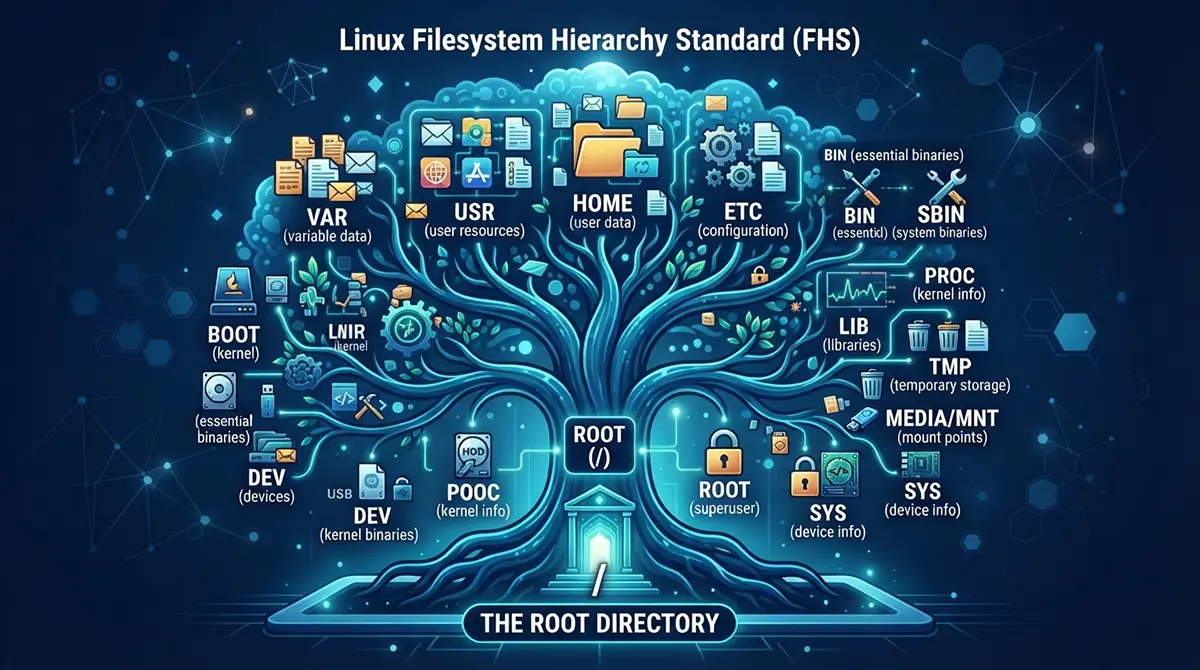
Understanding how the Linux file system is structured will make terminal navigation infinitely easier. Unlike Windows, which divides your hard drive into distinct drive letters like C: and D:, Linux uses a unified hierarchical directory tree rooted at a single forward slash (/).
Everything in Linux is a file—even hardware devices, network connections, and storage drives. The root directory (/) contains a standardized set of subfolders with specific responsibilities:
-
/home: Contains personal user directories where your documents, downloads, and desktop files live. -
/etc: Holds system-wide configuration files and settings. -
/binand/usr/bin: Store essential executable binaries and command-line programs. -
/var: Houses variable data such as system logs, databases, and cache files. -
/mediaor/mnt: The mount points where external USB drives, network shares, and secondary hard disks appear.
By understanding this clean, logical hierarchy, navigating through the command line transforms from a confusing guessing game into an intuitive mental map.
Package Management: Installing and Updating Software
One of the most revolutionary aspects of the Linux operating system is how it handles software installation and updates. If you grew up on Windows, installing software typically involved opening a web browser, searching for a program, navigating a sketchy download site, downloading an .exe or .msi file, clicking through endless “Next” prompts, and unchecking bloatware checkboxes. Furthermore, every single program had to manage its own updates independently in the background.
Linux completely modernized this paradigm decades before smartphone app stores popularized the concept.
Understanding Repositories
In Linux, software is managed centrally through “repositories” (often called repos). A repository is a secure, curated online database maintained by your Linux distribution’s developers. Every piece of software available in the repository has been thoroughly vetted, tested for security vulnerabilities, and compiled specifically to match your exact operating system version.
When you want to install a program, your system’s package manager connects to these official repositories, downloads the software package, verifies its cryptographic digital signature to ensure authenticity, and installs it cleanly on your system.
Apt, Dnf, and Pacman: The Software Managers
Different Linux families use different package managers under the hood. Learning the basic syntax of your distribution’s package manager unlocks total control over your software environment:
-
Debian and Ubuntu-based distros use
apt(Advanced Package Tool). To update your system and install a program like the VLC media player, you simply open your terminal and run commands likesudo apt update,sudo apt upgrade, andsudo apt install vlc. -
Fedora and Red Hat-based distros use
dnf(Dandified YUM). The workflow is remarkably similar, using commands likesudo dnf updateandsudo dnf install vlc. -
Arch Linux uses
pacman, beloved by advanced users for its blistering speed and access to the Arch User Repository (AUR), which contains virtually every piece of open-source software in existence.
In addition to traditional package managers, modern Linux distributions also support universal containerized package formats like Flatpak and Snap. These packages bundle an application alongside all its required dependencies, allowing developers to deploy the exact same app across any Linux distribution seamlessly.
File Permissions and User Management in Linux
Security is baked into the very DNA of Linux. Built from the ground up on multi-user Unix principles, Linux assumes that multiple people—or multiple applications—might be sharing the same computer simultaneously. To prevent chaos, accidental file deletions, and malicious tampering, Linux enforces a rigorous, unbreakable system of file permissions and user privileges.
The Unix Philosophy of Security
In a standard consumer operating system, the person sitting in front of the computer is usually treated as an all-powerful administrator who can do whatever they want, including accidentally deleting critical system files or letting malware infect the core operating system. Linux separates user accounts strictly from administrative control.
When you set up your Linux computer, you create a standard user account. Your user account has total dominion over your personal home directory, but it is completely locked out of modifying core system files or other users’ private documents. This creates a remarkably resilient security posture: even if a malicious script manages to infiltrate your user account, the damage is strictly contained because it lacks the permissions required to compromise the wider operating system.
Read, Write, and Execute: Decoding Permissions
Every file and directory in Linux is governed by three distinct permission types assigned to three different categories of people. The categories are:
-
User (u): The specific owner of the file.
-
Group (g): A designated group of users who share access.
-
Others (o): Everyone else on the system.
Within each of these categories, permissions are broken down into three fundamental actions:
-
Read (r): The ability to open and view the contents of a file or list the contents of a directory.
-
Write (w): The ability to modify, edit, or delete a file or directory.
-
Execute (x): The ability to run a file as a program or script, or enter a directory.
When you run the ls -l command in your terminal, you will see permission strings that look like -rwxr-xr--. By learning to read these shorthand permission codes, you gain absolute mastery over who can access, modify, or run every single file on your machine.
Sudo: With Great Power Comes Greater Responsibility
Ineptitude or administrative tasks occasionally require elevated privileges—such as installing a new package, modifying system configurations, or updating the kernel. Instead of logging in as an all-powerful “root” superuser all the time (which is a massive security risk), Linux uses the sudo command (Superuser Do).
When you prepend sudo to a terminal command, the system prompts you for your user password. If your account has administrative privileges, the system temporarily elevates your authority to execute that single command safely. This elegant mechanism ensures that you never run high-risk administrative commands by accident, keeping your system secure against both external threats and internal typos.
Real-World Applications and Global Career Opportunities
Moving beyond personal desktop exploration, learning Linux opens the door to immense professional opportunities. Whether you realize it or not, Linux is the undisputed king of enterprise infrastructure, cloud computing, and modern software development.
From Personal Desktops to Enterprise Servers
While desktop Linux adoption continues to grow among privacy-conscious consumers, developers, and creators, its dominance in the server market is absolute. Over ninety percent of the world’s public cloud infrastructure runs on Linux. The top million web servers on the internet, major stock exchanges, supercomputing clusters, Android smartphones, and embedded Internet of Things (IoT) devices all rely on Linux kernels.
When companies build modern web applications, they deploy them to Linux-based cloud virtual private servers (VPS) hosted by Amazon Web Services, Google Cloud, or Microsoft Azure. Understanding how Linux filesystems, networking stacks, and permissions work is an indispensable prerequisite for anyone wanting to build a career in technology.
Cloud Computing, Containers, and Infrastructure
As enterprises worldwide accelerate their digital transformations, specialized technical hubs are emerging globally. For example, organizations looking for robust cloud infrastructure frequently invest in DevOps Services in Dubai, while professionals tracking regional compensation trends often analyze the average Linux dubai salary to benchmark their skills. Similarly, businesses demanding reliable uptime rely heavily on providers offering Best tech support dubai, ensuring that Linux-based enterprise servers run smoothly around the clock.
In these advanced environments, Linux serves as the foundation for containerization technologies like Docker and orchestration platforms like Kubernetes. Mastering Linux commands, shell scripting, and server configuration positions you at the center of the modern tech economy, enabling you to transition into lucrative roles as a Systems Administrator, Cloud Engineer, DevOps Specialist, or Cybersecurity Analyst.
Troubleshooting Common Beginner Hurdles
Every new journey comes with a learning curve, and transitioning to Linux is no exception. Encountering occasional hurdles is completely normal, and overcoming them is how true technical proficiency is forged. Let us look at how to handle common beginner stumbling blocks.
Hardware Compatibility and Drivers
While modern Linux distributions feature astonishing hardware support—often recognizing Wi-Fi cards, webcams, and Bluetooth peripherals instantly—proprietary hardware manufacturers occasionally lag behind in releasing open-source drivers. If your dedicated graphics card or specialized wireless adapter is not performing optimally, do not panic.
Most beginner-friendly distros like Ubuntu and Linux Mint include a built-in utility called “Driver Manager” or “Additional Drivers.” With a single click, this tool scans your hardware, identifies missing proprietary drivers from companies like NVIDIA or AMD, and installs them automatically. If you encounter a hardware issue, turning to the vibrant Linux community forums will almost always yield a step-by-step solution provided by fellow enthusiasts who faced the exact same challenge.
Overcoming Terminal Anxiety
It is completely normal to feel intimidated by the terminal when you are first starting out. The fear of typing a wrong command and breaking your system can keep beginners glued to graphical menus. The best way to overcome this anxiety is to embrace experimentation in a safe environment.
Remember that you can always practice inside a virtual machine or a live USB where mistakes have zero consequences. Furthermore, modern terminal emulators feature copy-pasting, command history (using the up and down arrow keys to recall previous commands), and tab-completion (pressing the Tab key to auto-complete file and folder names). Take your time, read error messages carefully, and treat every mistake as a valuable learning opportunity.
Conclusion: Your Journey into the Open-Source Future Begins Today
Embarking on your Linux journey is an empowering step that fundamentally transforms your relationship with technology. You are moving away from passive consumption within walled corporate gardens and stepping into a world of active creation, absolute ownership, and limitless customization.
Whether you choose the gentle, welcoming embrace of Linux Mint, the polished versatility of Ubuntu, or the cutting-edge innovation of Fedora, the open-source community welcomes you with open arms. Armed with a solid understanding of open-source philosophy, live testing methods, terminal navigation, package management, and system security, you are more than ready to begin your exploration. Download your first ISO, spin up a live USB or a virtual machine, and take your first steps into the vast, exciting world of Linux today. Your open-source future starts now.