


In the complex ecosystem of modern enterprise virtualization, few events carry as much underlying tension as updating security certificates. Maintaining a secure environment requires strict adherence to compliance standards, forcing administrators to routinely update Secure Sockets Layer and Transport Layer Security certificates across their entire infrastructure stack. Yet, anyone who has managed a VMware vSphere environment for any length of time knows the dreaded feeling of logging into the vSphere Client shortly after a certificate renewal cycle only to find a critical pillar of the datacenter flagged in alarming red: the ESXi host is sitting in a disconnected state.
When an ESXi host loses its connection to vCenter Server immediately following a certificate operation, it is not merely a cosmetic annoyance. It represents a sudden rupture in the secure communication pipeline that binds management, storage orchestration, virtual machine migration, and high availability clusters together. Virtual machines may still be running happily on the physical hardware, but the administrator has lost centralized visibility and granular control.
This comprehensive guide will explore the intricate mechanics of vSphere certificates, uncover the root causes behind post-renewal disconnections, provide a rigorous diagnostic framework, and walk you through step-by-step resolution strategies to restore your infrastructure to a healthy, green state.
Unraveling the Anatomy of vSphere Certificates and Trust
To understand why a host disconnects after a certificate change, you must first understand how vCenter Server and ESXi hosts establish and maintain trust. VMware vSphere relies on a robust Public Key Infrastructure framework managed primarily by the VMware Certificate Authority, commonly referred to as VMCA. In standard deployments, VMCA acts as an internal root authority that issues certificates to vCenter services and every managed ESXi host in the inventory.
The relationship between vCenter Server and an ESXi host is built on mutual authentication. When vCenter communicates with an ESXi host, it presents its own certificate to prove its identity. Simultaneously, the ESXi host presents its local SSL certificate to vCenter. Both systems verify these certificates against their respective trust stores.
When you initiate a certificate renewal process, whether you are replacing the VMCA root certificate with a custom enterprise Certificate Authority or simply renewing the existing self-signed certificates, the cryptographic thumbprints and public keys change. If vCenter Server updates its certificate but the ESXi host retains the old trust anchor, or if the ESXi host receives a new certificate that vCenter does not recognize or trust, the secure handshake fails. Because authentication fails, vCenter severs or refuses the connection, resulting in the disconnected status observed in the user interface.
Common Root Causes of Post-Renewal Disconnections
Pinpointing the exact trigger for an ESXi host disconnection requires looking at several potential points of failure within the communication pipeline. While the symptom is always the same, the underlying etiology can vary wildly depending on how the certificate renewal was executed.
Stale Cryptographic Thumbprints
Every ESXi host registered in vCenter maintains a stored cryptographic thumbprint of the vCenter Server certificate, and vCenter maintains a stored thumbprint of each ESXi host certificate. When certificates are renewed, these thumbprints change. If the management service on the ESXi host (known as hostd) or the vCenter management service (known as vpxd) fails to update these cached values, a thumbprint mismatch occurs. The connection attempt is rejected due to untrusted identities.
Intermediate Certificate Authority Chain Gaps
Many organizations use third-party enterprise Certificate Authorities rather than the default VMCA. When issuing new certificates for ESXi hosts or vCenter services, administrators must ensure the entire certificate chain, including root and intermediate certificates, is properly imported into the local trust stores. A missing intermediate certificate means the host or vCenter cannot validate the authenticity of the presented certificate, leading to an immediate breakdown in trust.
Synchronization Delays and Service Hangs
Certificate renewals trigger mass updates across multiple internal components. In large environments with hundreds of hosts, vCenter Server pushes new certificates asynchronously or in batches. If the vpxd service becomes overwhelmed, or if the local host agent on the ESXi host experiences a service hang while attempting to apply the new certificate files, the update process can leave the host in an intermediate, broken state where neither the old nor the new credentials work correctly.
Firewall and Port Restrictions During Renewal
During the renewal process, vCenter communicates with the ESXi host over specific ports, primarily port 443 for HTTPS and port 902 for heartbeats and NFC traffic. If network security policies, software firewalls, or internal routing rules temporarily block these ports while the certificate swap is occurring, the host will fail to update its local store, causing vCenter to lose track of the host state.
Initial Triage and Diagnostic Steps
When you discover an ESXi host in a disconnected state following a certificate renewal, resist the urge to immediately reboot the physical server or remove the host from the inventory. Impulsive actions can lead to orphaned virtual machines, broken cluster configurations, and extended downtime. Instead, follow a methodical diagnostic approach to gather evidence from the log files.
Inspecting vCenter Server Logs
Your first stop should be the vCenter Server logs, specifically the vpxd.log file located in the
/var/log/vmware/vpxd/ directory on a VCSA appliance. You can stream or search this file using secure shell access and standard command line utilities. Look for keywords such as SSL, Certificate, Handshake, or Thumbprint.You will often find specific error codes indicating why the connection failed. For instance, an error stating that the remote certificate is untrusted points directly to a thumbprint mismatch or a missing root certificate in the trust store.
Examining ESXi Host Logs
Next, shift your focus to the affected ESXi host. Log into the ESXi Direct Console User Interface or use secure shell to examine the local log files located in
/var/log/. The two critical log files for this troubleshooting phase are hostd.log and vpxa.log.The hostd log tracks the management daemon activities on the host, while the vpxa log tracks the vCenter agent activities. Reviewing these logs will reveal whether the host successfully accepted the new certificate files, whether the local SSL daemon restarted correctly, and whether vCenter is actively attempting to poll the host.
If you frequently encounter such security errors or unauthorized intrusions on your servers, check out our “IT support services in UAE” page for a professional infrastructure audit.
Step-by-Step Resolution Strategies
Once you have identified the nature of the disconnect, you can apply the appropriate remediation technique. Below are the primary methods used to bring a disconnected ESXi host back into the vCenter fold after a certificate renewal event.
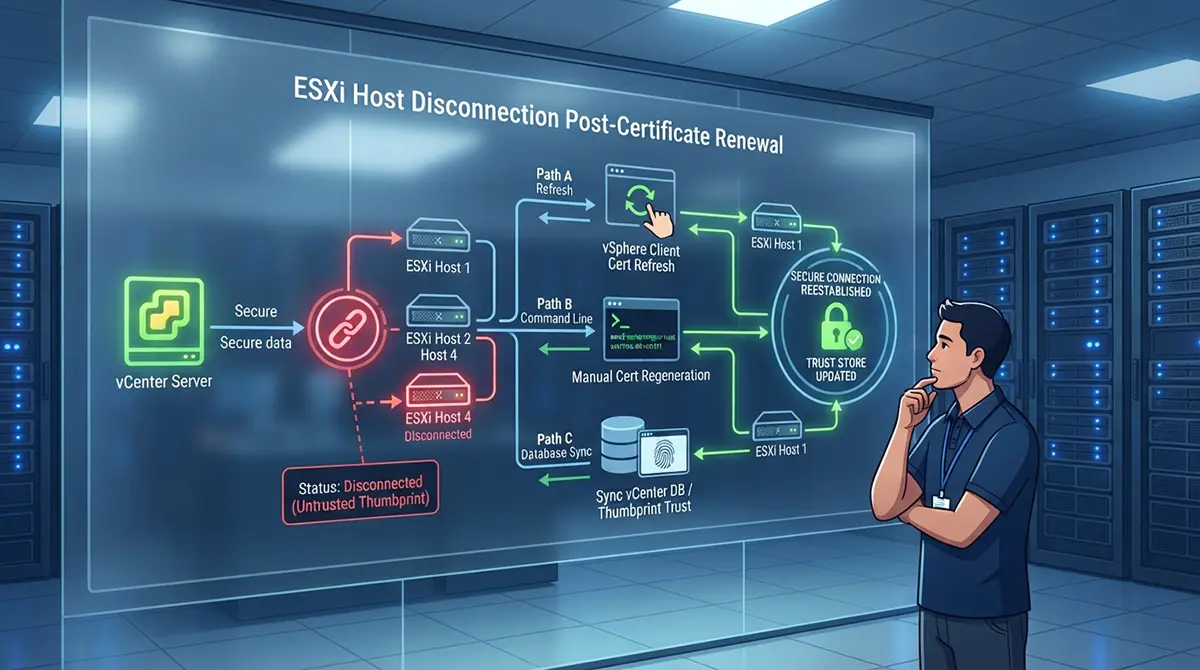
Strategy One: Refreshing Host Certificates via the vSphere Client
If the host is disconnected but remains accessible via the Direct Console User Interface or an independent direct web client connection, you can often re-establish trust directly through the vSphere Client interface.
-
Log into the vSphere Client using an administrator account.
-
Navigate to the inventory and locate the disconnected ESXi host.
-
Right-click the host, hover over Certificates, and select Refresh.
-
Monitor the recent tasks pane at the bottom of the screen to observe the certificate generation and installation process.
If the operation succeeds, vCenter pushes a new valid certificate to the host, updates the internal database with the new thumbprint, and transitions the host status back to connected. If this action fails with a credential or communication error, you must move to manual command line intervention.
Strategy Two: Manual Certificate Generation and Replacement via Command Line
When the graphical interface fails to communicate with the host, you can resolve the issue by logging directly into the ESXi host shell and forcing a certificate regeneration using local scripts.
-
Enable Secure Shell and Secure Shell access on the ESXi host via the Direct Console User Interface.
-
Connect to the ESXi host using an administrative terminal client.
-
Navigate to the certificate storage directory, which is typically located at
/etc/vmware/ssl/. -
Back up the existing invalid or expired certificate and key files to a secure backup directory.
-
Generate a new set of self-signed certificates by executing the native ESXi certificate generation command or script provided by VMware utilities.
-
Restart the management agents on the ESXi host to force the system to load the newly generated certificates into active memory.
To restart the management agents via the command line, you can execute the services restart script by typing
services.sh restart and pressing enter. Alternatively, you can restart the specific host daemon and vCenter agent services individually by issuing commands to stop and start hostd and vpxa.Strategy Three: Updating Thumbprints Manually in the vCenter Database
In scenarios where the ESXi host has successfully generated and applied a new certificate, but vCenter Server refuses to recognize the new thumbprint due to a database synchronization glitch, you may need to force vCenter to re-learn the host identity.
-
Connect directly to the ESXi host web interface using a web browser and accept the security warning to view the new SSL certificate details.
-
Note the cryptographic SHA-1 or SHA-256 thumbprint displayed by the browser for the host certificate.
-
In the vSphere Client, right-click the disconnected host and select Connection, then select Disconnect if it is in a partially responsive state.
-
Right-click the host again, select Connection, and then select Connect.
-
When the prompt appears indicating a certificate thumbprint mismatch, review the presented thumbprint against the one you gathered from the direct web interface.
-
Confirm the prompt to accept the new thumbprint, allowing vCenter to update its internal database and re-establish the secure tunnel.
Advanced Troubleshooting and Complex Edge Cases
While the standard resolution methods solve the vast majority of post-renewal disconnections, complex enterprise environments often present unique edge cases that require deeper technical intervention.
Dealing with Custom Enterprise Certificate Authorities
Environments utilizing third-party commercial or internal Microsoft Enterprise Certificate Authorities for ESXi hosts face a higher risk of disconnection during renewals. Unlike self-signed certificates managed automatically by VMCA, custom certificates require manual signing requests, proper private key generation, and precise placement on the ESXi filesystem.
If a custom certificate renewal causes a disconnection, verify that the private key matches the public certificate precisely. You can check the modulus of the private key and the certificate using OpenSSL commands to ensure they form a valid cryptographic pair. Furthermore, verify that the complete certificate trust chain is present in the
/etc/vmware/ssl/rui.crt file on the ESXi host. If intermediate certificates are missing from this file, the host will reject vCenter connections, and vCenter will reject the host.Resolving Duplicate UUID and Certificate Conflicts
In virtualized environments that utilize automated host provisioning, cloning, or template deployments, duplicate Universally Unique Identifiers can occasionally occur. If a newly provisioned or renewed host inherits configuration traits from an older decommissioned host, certificate lookups in the vCenter database can become corrupted.
To resolve this, you must verify the hardware UUID of the physical server matches the UUID registered in vCenter. If a mismatch exists, you may need to regenerate the host UUID or remove the host entirely from the inventory, clean up the database references, and perform a completely fresh join operation.
Proactive Best Practices to Prevent Future Disconnections
An ounce of prevention is worth a pound of cure, especially when dealing with core infrastructure components like certificate management. Implementing robust operational habits can drastically reduce the likelihood of encountering unexpected host disconnections during your next certificate lifecycle cycle.
Staggered Rollouts for Large Inventories
Never attempt to renew certificates across an entire large-scale datacenter simultaneously. Instead, adopt a staged rollout strategy. Renew certificates on a single non-production cluster or a pilot host first. Monitor the environment for at least twenty-four hours to ensure that management agents remain stable, automated backups succeed, and trust relationships hold firm before proceeding with a broader rollout.
Automated Monitoring and Alerting
Configure proactive monitoring alerts within your enterprise monitoring platforms to track certificate expiration dates well in advance. Set up warning thresholds at sixty days and critical alerts at thirty days before expiration. This eliminates the danger of rushed, emergency certificate renewals that so often lead to human error and misconfiguration.
Maintaining Comprehensive Documentation
Keep an up-to-date topology map and configuration register of your certificate authorities, trust chains, and custom certificate deployment procedures. Ensure that all systems administrators on your team understand whether your environment relies on native VMCA management or custom enterprise CAs, as the troubleshooting workflows for each are fundamentally different.
Conclusion
Encountering an ESXi host disconnected status immediately after a certificate renewal can induce panic, but approaching the problem with a clear understanding of vSphere security architecture transforms a crisis into a manageable troubleshooting task. By methodically analyzing log files, verifying cryptographic thumbprints, checking trust chains, and carefully restarting management services, you can systematically dismantle the barriers preventing secure communication between vCenter and your ESXi hosts.
With patience, precision, and adherence to structured diagnostic procedures, your infrastructure will quickly return to a secure, stable, and fully connected state, ready to handle the demands of modern enterprise workloads without interruption.